I’m a bit of a GIMPtard and I keep forgetting how to do this, so I’ve thrown together these simple instructions for a worked example on how to scale and size a photograph for one of those customizable Christmas ornaments.
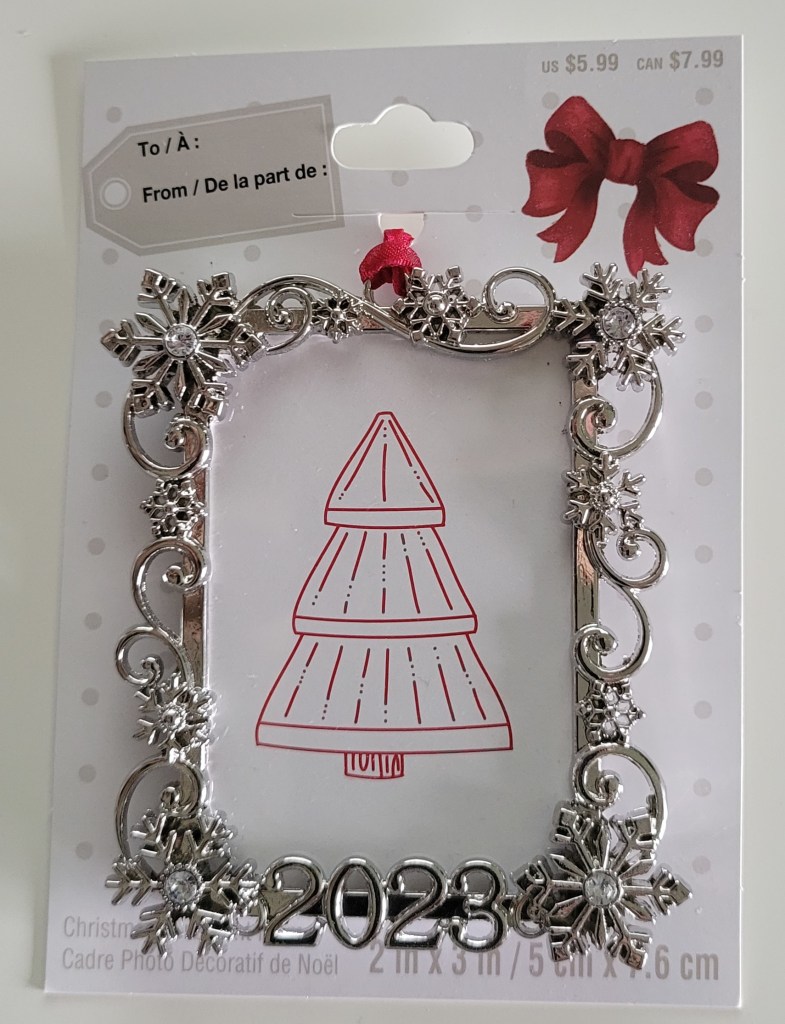
The first thing to do is to have a picture that you want in the frame. Then you’ll need to remove the back of the frame and take the measurements.

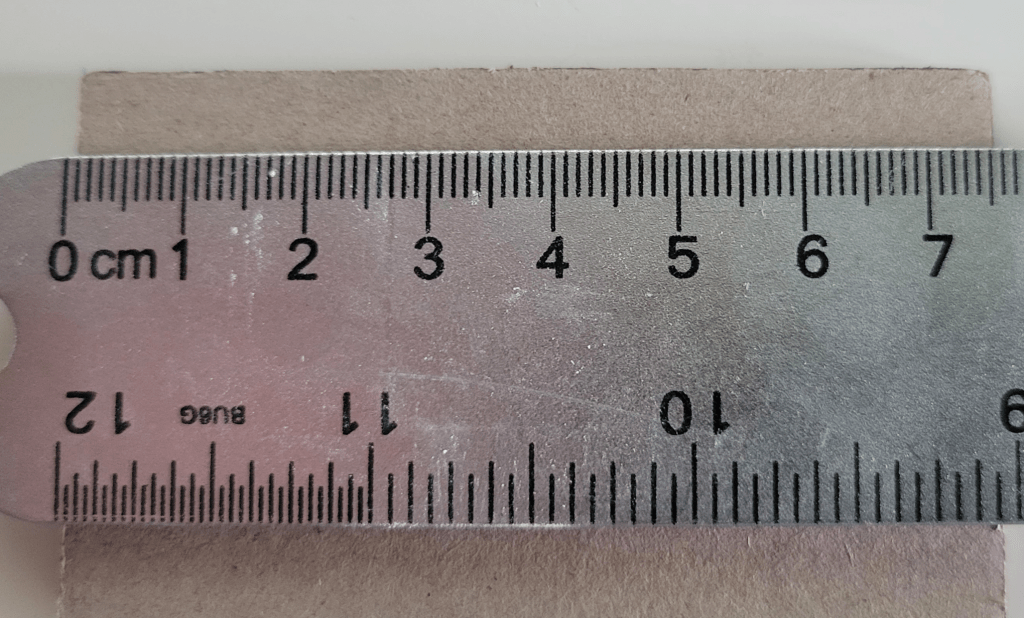
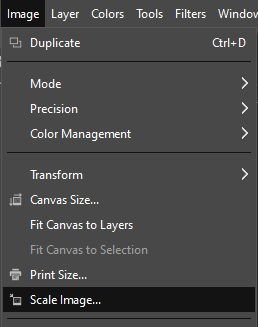
As you can see, I’ve measured this to be 50mm by 70mm. So, I’ll need to adjust my picture to the same size. To do this, I go to the Image menu and choose Scale Image. Before doing this, it’s a good idea to crop out anything that isn’t wanted in the final product, preferably by cropping the image into a strip, either vertical or horizontal, only cutting out above and below, or along the sides.
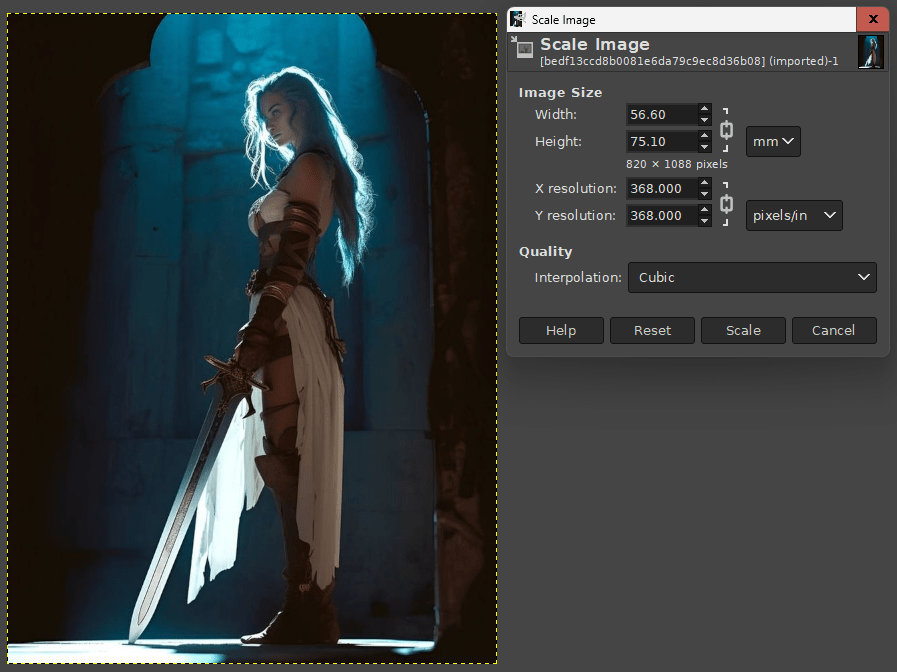
Then I’ll need to adjust the picture. Set the measurements along the Image Size to the system used, in my case mm, and then adjust the X or Y resolution (it doesn’t matter, provided the aspect ratio is locked, because they should change together) so the smallest dimension is appropriately sized. In other words, adjust the image width until one dimension is correct and the other is larger. Adjusting the pixels/in means that we keep the original number of pixels, we’re just putting them in a smaller area, that way we don’t lose resolution.
Next we’ll need to crop the image to the correct size. We’ll use the Canvas Size to do this. That’s on the Image menu, again.
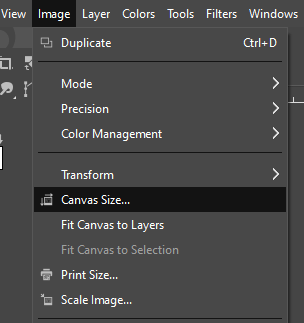
Next, I set the Canvas Size units to mm, adjust the Canvas Size to slightly larger than I need since it’s easier to make the picture smaller after it’s printed, and then click on Center to make sure the picture is centered on the canvas, or in this case, vice-versa.

Once that’s done, I go back to the Image menu and select Flatten Image.

This then effectively crops the picture to the size of the canvas. It would be easy to stop here, but there’s another simple step I like to take. I’ll go back to the Canvas Size and reset it to 4×6 inches, the same size as the photo paper I’m going to use.

Being sure to click Center, I can now export the image and print it.
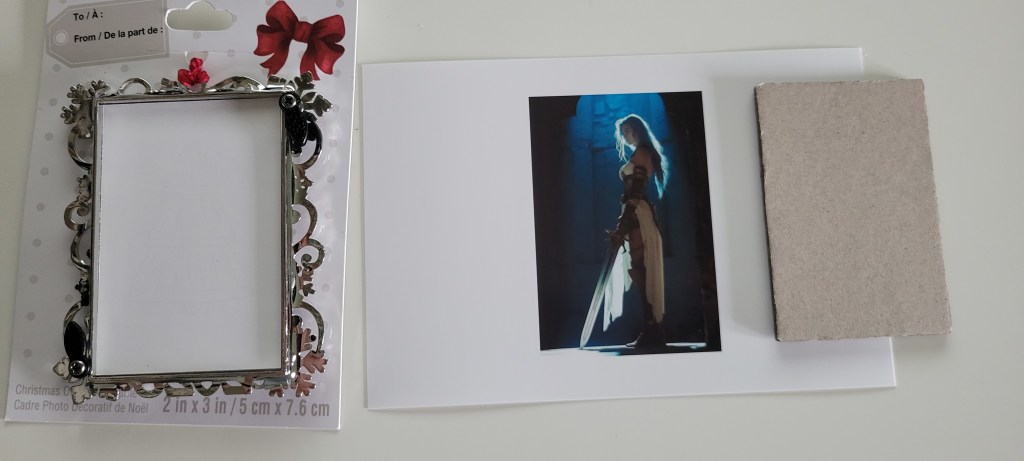
All I need to do now is cut it out and put it all together.
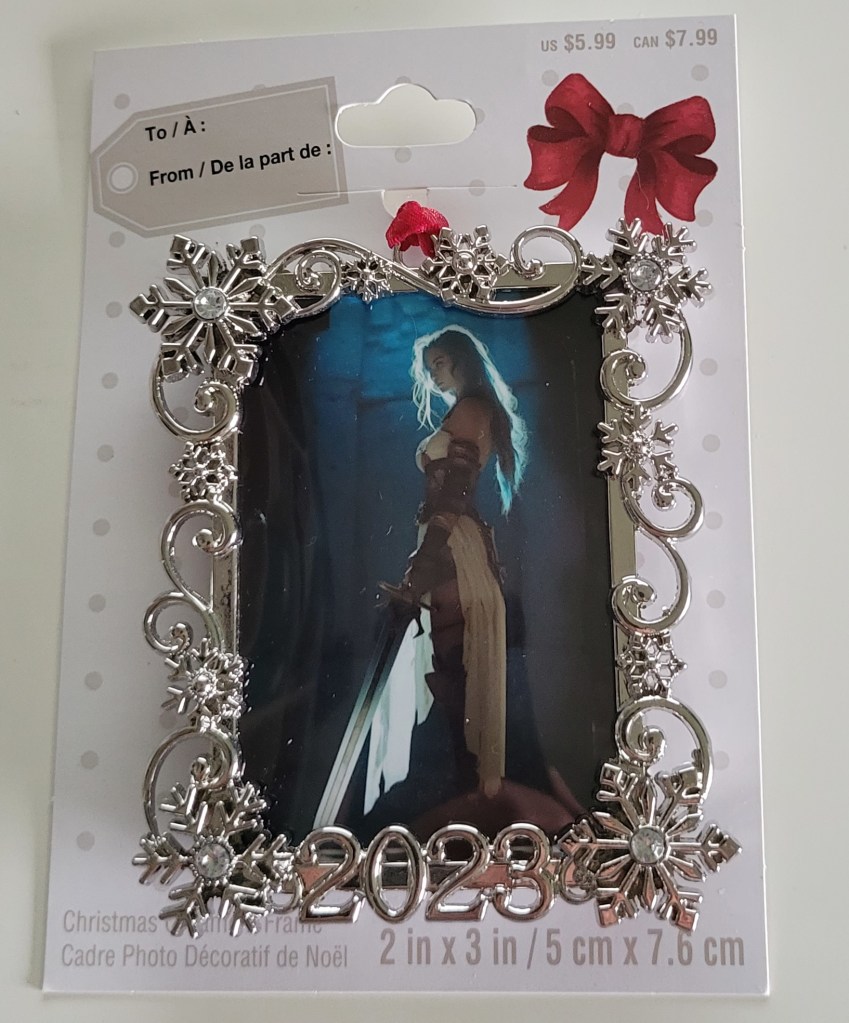
Incidentally, I have not been able to figure out an official source for this image. I’ve been using it as part of a character prompt for my second novel, and I’ll have more to say about that once it’s been through an Alpha review.
Anyway, I hope you found this because you were looking for it, and that it came in helpful.
Enjoy your day, week and month, and stay safe.
 Andrew Wellington
Leave a comment