Here’s the system I’ve settled on to format Scrivener work in CritiqueMatch.
Why?
CritiqueMatch loses all of your formatting information and markup in the copy-paste action, which isn’t so terrible when it comes to fonts, but all of your paragraph indentations are likely to be lost and who wants to sit there and comb through tens of thousands of words to insert new indentations?
1 – Migrate to Word.
If you don’t have Word, well, obviously this system won’t be for you. Hopefully you’ll have another word processor which will allow you to search and replace markup.
The easiest way I’ve found to migrate to Word is to compile to a file.docx format.
2 – Insert Manual Line Breaks.
This is the fun part. You’ll need to open the Find and Replace dialog – just press CTRL+H.
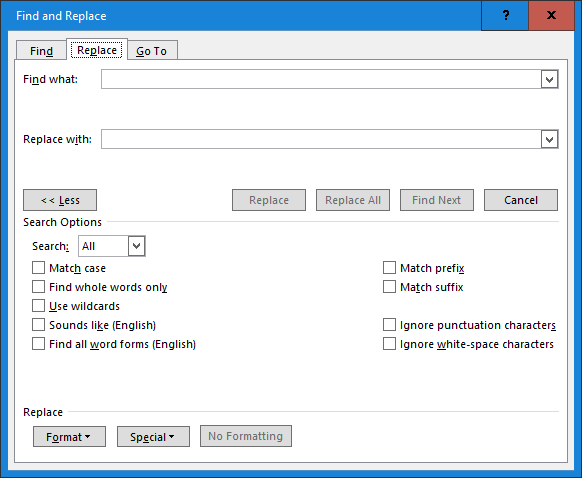
Click on the Special button, then set the Find what: field to a Paragraph Mark from the options, and set the Replace with: field to a Paragraph Mark followed by a Manual Line Break. This is what the options will look like…
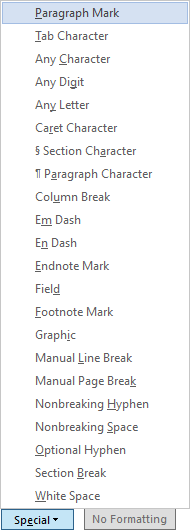
…and when you’re done, the populated dialog box should look like the following one. It can be filled manually, but I can never remember the markup so I use the menus.

Click on the Replace All button and Word will diligently follow every paragraph mark – essentially, where you hit ENTER – with a manual line break – as if you’d pressed SHIFT+ENTER. This will force a line of whitespace between your paragraphs. It’s not as pretty as new-line indentation, but at least your Critique Partner isn’t going to be confronted by a waterfall of text when they open your work.
3 – Copy by Chapter.
Or not, but this way makes it easier to select the text, rather than scrolling up and down looking for beginnings or endings of chapters and scenes.
Set the View mode of Word to Outline, and set the chapter headings to Heading 1 style.
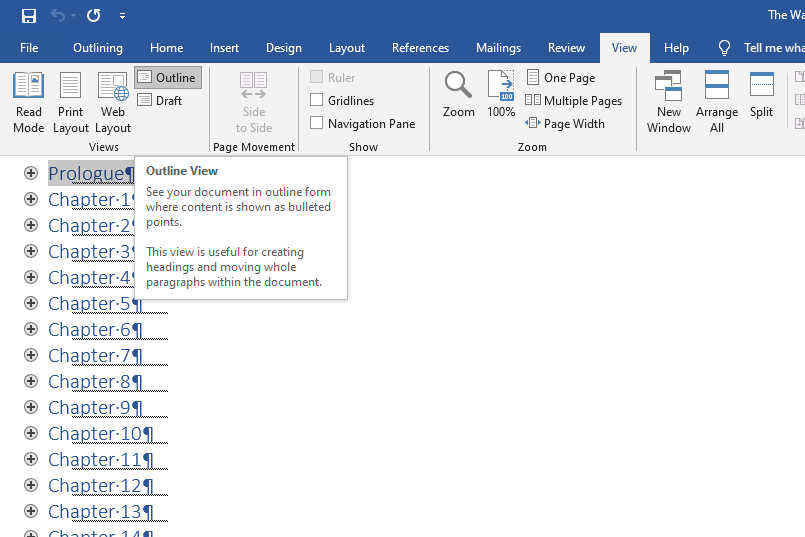
If you’ve followed along, you’ll be able to close up each chapter so all you see is the heading. Here, I have Prologue selected. Just press CTRL+C and it’s copied.
4 – Paste into CritiqueMatch.
Here you’ll need to be logged into CritiqueMatch and go to your My Work tab.

From here you’ll see all the work you’ve uploaded. Odds are you haven’t uploaded any yet because you’re reading my guide, so you’ll see something like the following.

Here you can click on New work and CritiqueMatch will open a blank work page for you. Give it a Book title and a Work title, click in the large block and press CTRL+V. You should have something like the following.

The rest of it will be unique to you and your critique partners.
Hope this helped!
 Andrew Wellington